Five short steps, about five minutes, straight from your phone or computer — no printing, no visiting our office just to hand in a form.
This is exactly what you'll go through on the application form — nothing more, nothing hidden. Here's every step in detail.

Browse courses and prices on the home page. Found the one you want? Tap its Apply button. That course is carried straight through to the application form for you — you won't need to search for it or select it again.
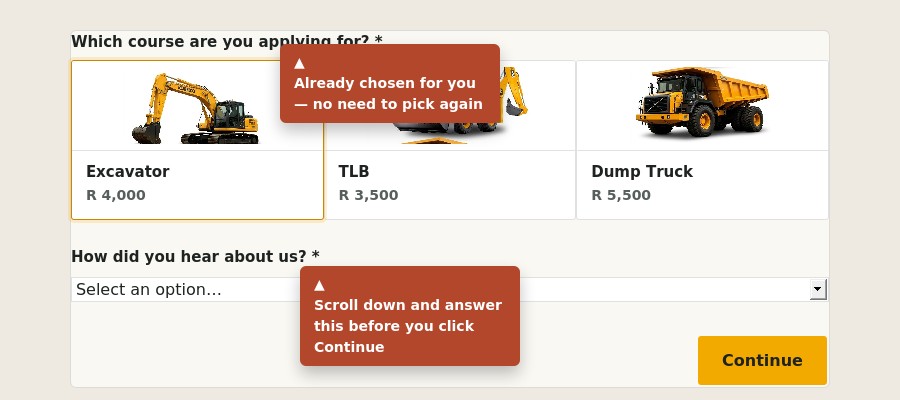
When the form opens, look at the top of the first screen: the course you tapped is already highlighted with an amber border — that's confirmation it's selected. You don't need to click it again.
Prefer to start straight from apply.html instead of a course card? No problem — the same course picker is right there; just tap the one you want the same way.
Fill in your name and surname, ID / passport / asylum number, gender, a contact number we can reach you on, and your home address. An email address is optional.
One contact person's name, phone number and address — in case we, or the government department overseeing your training, ever need to reach someone on your behalf.
Scroll through the terms and conditions — the same ones on our paper enrolment form, covering fees, refunds and what's expected from both you and us. Tick the box to confirm you've read and agree to them.
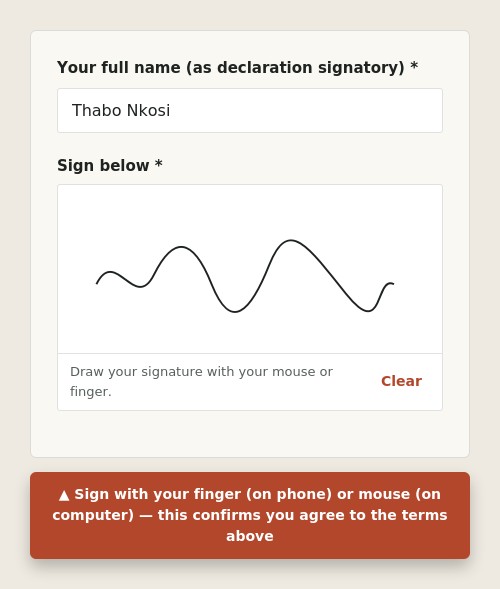
Then type your full name and sign in the box below it, using your finger on a phone or your mouse on a computer. Made a mistake? Tap Clear and sign again. This step can't be skipped — it's how you formally accept the terms.
Everything you've entered is laid out for a final check — course, personal details, next of kin, and who signed. Spot a mistake? Tap Back to fix it. Happy with it? Tap Submit application.
Your application lands straight in our office inbox — no waiting on the post or dropping off paperwork. We'll contact you on the number you gave to confirm your training date and next steps.
Have these ready and the form takes about five minutes, start to finish.
Every course includes hands-on, accredited training — here's a taste of what you could be training on.